

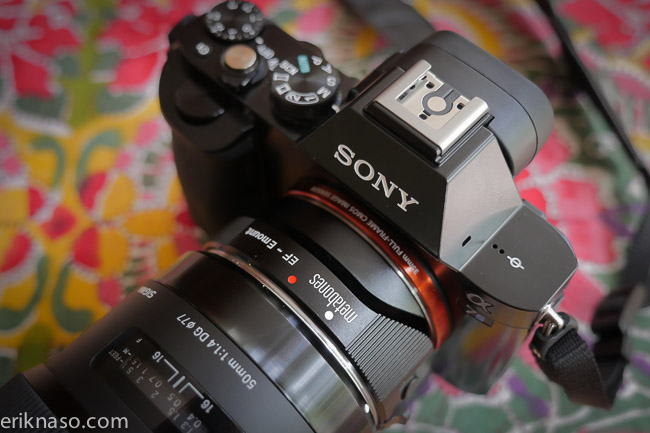

Today Metebones released an update to the MARK IV Canon EF Adapter. The update can be performed by the user so no need to send it in. One bummer for me is it requires a Windows PC. I couldn’t find a Apple OSX version. Looks like I have to wait until later today to perform the update. Not clear what the update will do exactly. I’m sure it has more to do with the adapter losing contact with the A7s than a say autofocus performance improvements. Here is the LINK. This update is for the MARK IV ONLY. Do not try to update old models. If you have an earlier model contact Metabones. I believe you can send it in for the update. To perform the update you need to Connect the Smart AdapterTM MARKIV to a windows computer with USB-MicroUSB cable. Follow the directions to the letter. Nothing worse than bricking the adapter.
Below is the info from Metabones.
EF-E Smart AdapterTM MARK IV is compatible with Sony A7S
RELEVANT PRODUCTS
This information is for the following models:
- EF-E Smart AdapterTM MARK IV (model number MB_EF-E-BM4)
ABOUT THIS DOWNLOAD
- Name: Firmware update V0.32 for EF-E Smart AdapterTM MARK IV
- Release date: 13 Aug 2014
- Benefits and improvements
- Sony A7S compatibility
SYSTEM REQUIREMENTS:
Operating Systems
The latest version of the firmware update is compatible with most commonly used versions of Microsoft Windows:
- Windows® Vista* SP2
- Windows® 7 SP1
- Windows® 8
- Windows® 8.1
COMPUTER HARDWARE:
The latest version of the firmware update is compatible with the following hardware:
- Hard disk space: 200MB or more
- RAM: 512MB or more
Note: Please close all other application software before updating the firmware- you have to prepare a USB to MicroUSB cable to connect the Smart AdapterTM MARK IV adapter to the computer
- OpenGL 2.0 is required
DOWNLOAD INSTRUCTIONS
Important notes:
- When performing the firmware update, please don’t disconnect the USB cable, otherwise, the adapter may become inoperable due to the sudden power shutdown
- Don’t connect the adapter to any camera and lens when performing the firmware update.
How to download the firmware updater:
- Make sure that you are logged on as a user with administrative rights.
- At the bottom of the page, read the disclaimer and agree to the terms and conditions by clicking on the checkbox. Then, click on the Download button.
- The download of the [MetabonesAppV01.exe] file will start.
- Save the file to the desktop of your computer (recommended).For Windows 8 users:Under the initial settings of Internet Explorer, the update file will be saved in the [Downloads] folder. Click the [Desktop] tile from the Start screen and find the download file in the [Downloads] folder by using Explorer.
RUN THE SOFTWARE
Once the file has downloaded successfully, you’re ready to upgrade the Firmware update V0.32 for the Smart AdapterTM MARK IV.
STEP 1: START UP THE Metabones App
- Close all currently running programs on your computer.
- Double-click the [MetabonesApp.exe] file you downloaded to start up the Metabones App.
- Connect your the Smart AdapterTM MARKIV to the computer by using the USB-MicroUSB cable.
- Then, follow the instructions in the Metabones App to update the firmware.
Follow me on Twitter @eriknaso and check out my page on Facebook.
Thanks for coming by! Please help support my site by using the links on this page or bookmark these from my favorite retailers, B&H, Adorama, Zacuto, Amazon.com & Think Tank Photo. Using the links cost you nothing extra, but it helps offset the cost of running my blog. Thanks again for coming by eriknaso.com!

